Linked Card Grid
This is a grid of cards that contain actions and supporting content about a single subject. Unlike the Info Card Grid, the entire card surface is clickable — this grid is designed for all cards to act as a single link. This component is based on USWDS.
Sower offers a few variations:
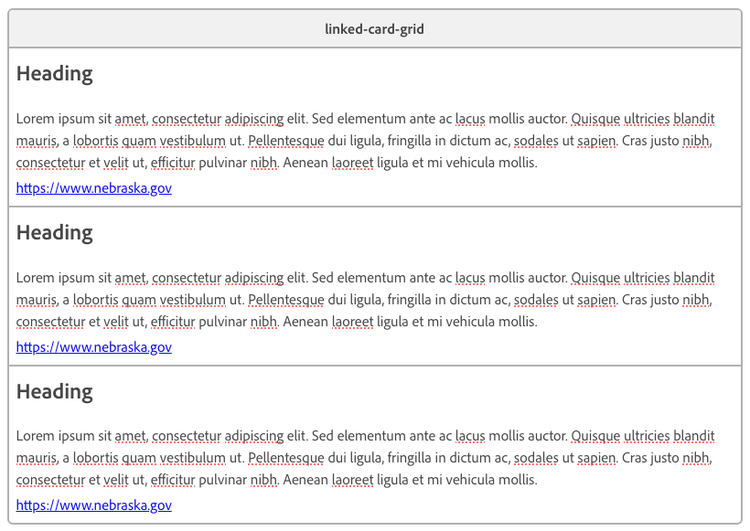
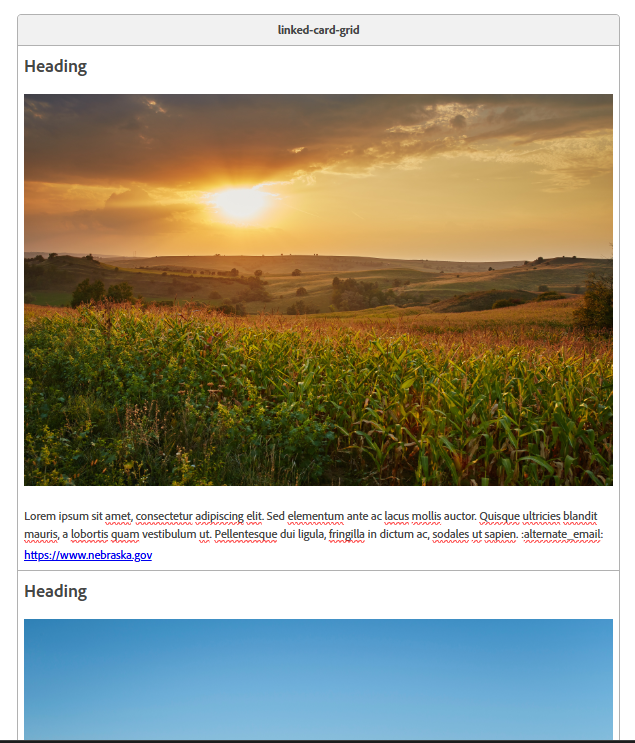
- with or without images on a white background (linked card grid)
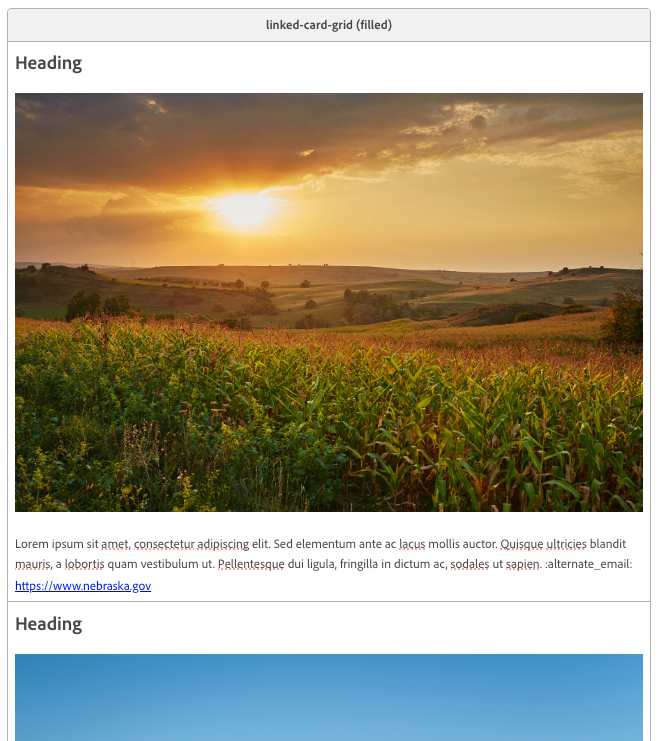
- with or without images on a dark background (linked card grid filled)
The number of cards per row adjusts automatically based on the page template and the section the block is placed in. There is no maximum number of cards, but one to two rows is recommended for readability.
When the Linked Card Grid is placed inside a section with a theme background color, card heading, fill background, and the arrow colors automatically adapt to match the section's color theme. When filled cards are placed on a dark or theme background, the background automatically lightens to provide contrast to the cards. No additional configuration is needed.
Authoring Guidance:
- All cards must be linked. If you have a combination of items with links and without, use the Info Card Grid instead.
- If one card has an image, they all should have an image.
- To add or remove cards, add or remove rows in the table.
Example:
Heading
Lorem ipsum sit amet, consectetur adipiscing elit. Sed elementum ante ac lacus mollis auctor. Quisque ultricies blandit mauris, a lobortis quam vestibulum ut. Pellentesque dui ligula, fringilla in dictum ac, sodales ut sapien. Cras justo nibh, consectetur et velit ut, efficitur pulvinar nibh. Aenean laoreet ligula et mi vehicula mollis.
Heading
Lorem ipsum sit amet, consectetur adipiscing elit. Sed elementum ante ac lacus mollis auctor. Quisque ultricies blandit mauris, a lobortis quam vestibulum ut. Pellentesque dui ligula, fringilla in dictum ac, sodales ut sapien. Cras justo nibh, consectetur et velit ut, efficitur pulvinar nibh. Aenean laoreet ligula et mi vehicula mollis.
Heading
Lorem ipsum sit amet, consectetur adipiscing elit. Sed elementum ante ac lacus mollis auctor. Quisque ultricies blandit mauris, a lobortis quam vestibulum ut. Pellentesque dui ligula, fringilla in dictum ac, sodales ut sapien. Cras justo nibh, consectetur et velit ut, efficitur pulvinar nibh. Aenean laoreet ligula et mi vehicula mollis.
How to author:
In the DA menu, go to Library > Blocks > Linked Card Grid > Cards without images
Linked Card Grid with Images
Heading

Lorem ipsum sit amet, consectetur adipiscing elit. Sed elementum ante ac lacus mollis auctor. Quisque ultricies blandit mauris, a lobortis quam vestibulum ut. Pellentesque dui ligula, fringilla in dictum ac, sodales ut sapien.
Heading

Lorem ipsum sit amet, consectetur adipiscing elit. Sed elementum ante ac lacus mollis auctor. Quisque ultricies blandit mauris, a lobortis quam vestibulum ut. Pellentesque dui ligula, fringilla in dictum ac, sodales ut sapien.
Heading

Lorem ipsum sit amet, consectetur adipiscing elit. Sed elementum ante ac lacus mollis auctor. Quisque ultricies blandit mauris, a lobortis quam vestibulum ut. Pellentesque dui ligula, fringilla in dictum ac, sodales ut sapien.
How to author:
In the DA menu, go to Library > Blocks > Linked Card Grid > Cards with images.
Linked Card Grid (Filled)
Heading
Lorem ipsum sit amet, consectetur adipiscing elit. Sed elementum ante ac lacus mollis auctor. Quisque ultricies blandit mauris, a lobortis quam vestibulum ut. Pellentesque dui ligula, fringilla in dictum ac, sodales ut sapien.
Heading
Lorem ipsum sit amet, consectetur adipiscing elit. Sed elementum ante ac lacus mollis auctor. Quisque ultricies blandit mauris, a lobortis quam vestibulum ut. Pellentesque dui ligula, fringilla in dictum ac, sodales ut sapien.
Heading
Lorem ipsum sit amet, consectetur adipiscing elit. Sed elementum ante ac lacus mollis auctor. Quisque ultricies blandit mauris, a lobortis quam vestibulum ut. Pellentesque dui ligula, fringilla in dictum ac, sodales ut sapien.
Heading

Lorem ipsum sit amet, consectetur adipiscing elit. Sed elementum ante ac lacus mollis auctor. Quisque ultricies blandit mauris, a lobortis quam vestibulum ut. Pellentesque dui ligula, fringilla in dictum ac, sodales ut sapien.
How to author:
In the DA menu, go to Library > Blocks > Linked Card Grid > Linked Card Grid (Filled) w/o Images or, Linked Card Grid (Filled) w/ Images.