Section Metadata / Background
Section Metadata allows you to manipulate a section by adding classes and changing the layout. Section metadata affects the whole section, including the block inside the section.
A section is the area between two section breaks.
Example:

How to author:
In the DA menu, go to Library, then to Blocks, and select section-metadata.
Layout
The layout option in the section metadata block allows you to place two blocks in the same row and specify the space you would like them to occupy.
To do this, you need to add two values in the cell next to the layout field and separate them by a forward slash. It should read like this: 8/4 where "8" is the width of the first block, "4" is the width of the second block. The sum of each width should equal 12, and the size of the block will be determined by the number.

Example:
Drawer 1
Drawer 2
Drawer 3
Additionally, you can have multiple rows of blocks within the same section, and the layout will apply to all of them. For example, if you have a layout of 5/7, the "5" represents the width of the first, third, fifth, and so on blocks, while "7" represents the width of the second, fourth, sixth blocks, and so forth.
The following example illustrates blocks arranged within the same section, featuring one section metadata with a layout of 5/7.
Example:

Gears of Government President’s Award winners
Today, we published progress updates for both Cross-Agency Priority (CAP) Goals and Agency Priority Goals (APGs) for the third quarter of FY2020. These updates highlight recent milestones and accomplishments as well as related initiatives that support progress towards a more modern and effective government.
2020-09-17

University of Nebraska Cornhuskers Football
In honor of National Women’s Small Business Month, we’ve partnered with SBA’s Office of Government Contracting and Business Development and Office of Program Performance, Analysis, and Evaluation to highlight the Women-Owned Small Businesses (WOSBs) data dashboard!
2020-09-30

Heading
Date/Metadata
Lorem ipsum sit amet, consectetur adipiscing elit. Sed elementum ante ac lacus mollis auctor. Quisque ultricies blandit mauris, a lobortis quam vestibulum ut. Pellentesque dui ligula, fringilla in dictum ac, sodales ut sapien.

Heading
Date/Metadata
Lorem ipsum sit amet, consectetur adipiscing elit. Sed elementum ante ac lacus mollis auctor. Quisque ultricies blandit mauris, a lobortis quam vestibulum ut. Pellentesque dui ligula, fringilla in dictum ac, sodales ut sapien.

Heading
Date/Metadata
Lorem ipsum sit amet, consectetur adipiscing elit. Sed elementum ante ac lacus mollis auctor. Quisque ultricies blandit mauris, a lobortis quam vestibulum ut. Pellentesque dui ligula, fringilla in dictum ac, sodales ut sapien.
Heading
Lorem ipsum sit amet, consectetur adipiscing elit. Sed elementum ante ac lacus mollis auctor. Quisque ultricies blandit mauris, a lobortis quam vestibulum ut. Pellentesque dui ligula, fringilla in dictum ac, sodales ut sapien. Cras justo nibh, consectetur et velit ut, efficitur pulvinar nibh. Aenean laoreet ligula et mi vehicula mollis. Nulla facilisi. Duis varius massa mi, ac sollicitudin turpis rhoncus ac. Vestibulum ut aliquet diam, ac rutrum nisi.
Heading
Lorem ipsum dolor sit amet, consectetur adipiscing elit. Sed elementum ante ac lacus mollis auctor. Quisque ultricies blandit mauris, a lobortis quam vestibulum ut. Pellentesque dui ligula, fringilla in dictum ac, sodales ut sapien. Cras justo nibh, consectetur et velit ut, efficitur pulvinar nibh. Aenean laoreet ligula et mi vehicula mollis. Nulla facilisi. Duis varius massa mi, ac sollicitudin turpis rhoncus ac. Vestibulum ut aliquet diam, ac rutrum nisi.
Background Options
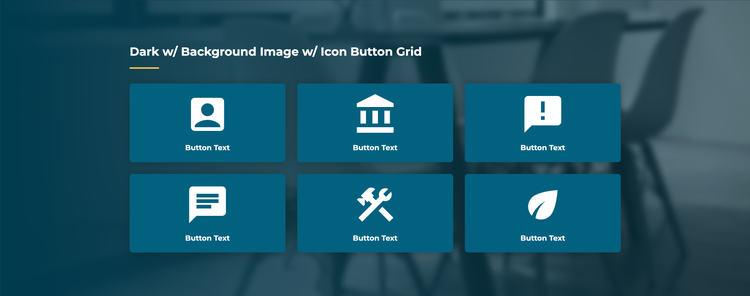
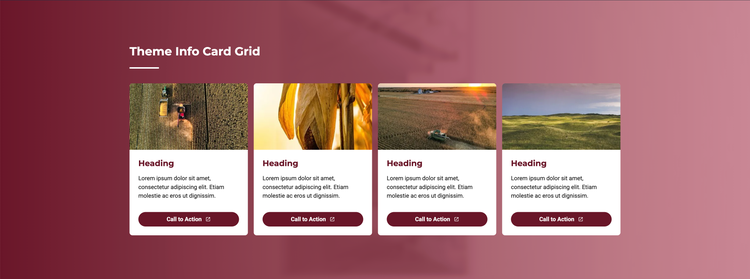
The background option in the section metadata block allows you to add visual variation to your page. You may choose between three color options: light (default), dark, or theme. The theme option matches your site's primary theme color (note: the default theme displays very similarly to dark).
Keep in mind that changing the background will impact the appearance of certain blocks. For example, a filled-in card placed on a dark or theme background will automatically flip to a light color so it remains visible.
You may also provide an optional URL in the background-image option to use an image as your section background. To ensure your text remains highly legible and does not visually compete with the image, the background will automatically be blurred and desaturated. If an image is provided but a background color is not specified, a light overlay is applied automatically.
Authoring Guidelines
- Avoid visual clutter: Do not place multiple dark/theme backgrounds or multiple background images in a row.
- Use "theme" sparingly: The theme color stands out significantly, so reserve it only for your highest-priority content.
- Limit to one block: For optimal visual presentation, a section with customized background options should contain only one block.
- Consider your layout: Background options are designed for full-width templates (pages with no sidebars or in-page navigation). On non-full-width pages, the background color itself will not display. However, the blocks within that section will still be affected by your selection (for example, a card will change to the theme color, but sit on a standard light background).